Step 2: Device purchasing
Once you have completed the Getting Set Up article you're ready to purchase your devices.
There are four devices available to purchase directly through your Ryft dashboard, If you are unsure on what to order please speak with your account manager.
Devices
Devices
PAX A35 - This device connects with an ethernet cable and is fixed to a location.
PAX A35 Wifi Enabled - This device connects with an ethernet cable, has Wifi as a back up connectivity option, and is fixed to a location.
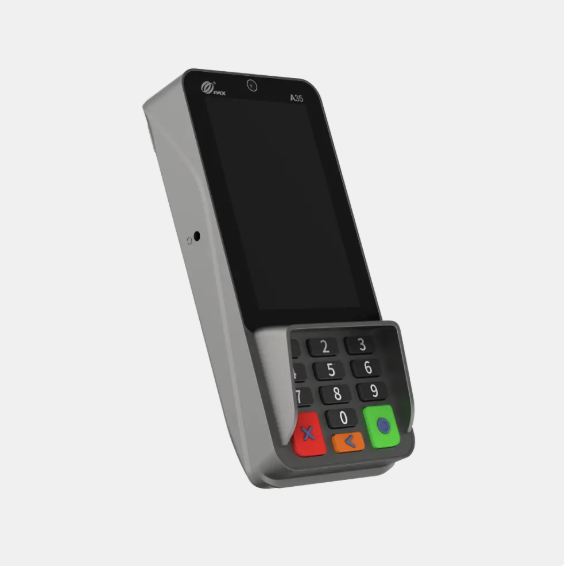
PAX A50 - This pocket sized device is Wifi only but can be moved around the location, it will work as long as it's connected.
PAX A920 Pro - Slightly larger than the A50, this device is Wifi enabled and comes with a built in printer.
After purchase you can usually expect to receive your device in 3-5 working days. Once you have received your device you're ready to register the device so that you can start taking payments on-site.
Next article - Registering your device
Next article - Registering your device
Related Articles
Step 1: Getting Set Up
Follow these steps to get your venue set up for in person payments through your existing Ryft account. If you're currently using Dojo to take payments on site please speak with your account manager before continuing. On your Booked it dashboard. ...Step 3: Registering your device
After completing the Getting Set Up article, you're ready to register a device. This can only be completed once you have received the device. Login to your Ryft account and click the profile icon in the top right hand corner. Select Terminals from ...Device Setup - Connecting to wifi
Your device should come preloaded with everything you need to start making transactions. Connecting to wifi To enter settings you may need to drag up from the bottom of the screen to see the device controls, then you can close any apps. Click the ...Basic Information
Booked it offers five different solutions for taking payments on-site. Manual POS Dashboard POS Standalone POS Handheld POS Kiosk POS Venue requirements: You must be using the latest Booked it plugin for online payments before you can use Dashboard, ...Steps, Categories & Products
While setting up a Product Set, users have the option to add Steps, Categories, and Products. Here is how you can do it: Steps, Categories & Products Begin by going to the Product Sets tab and selecting the product you want to edit, or simply create ...